> ## Documentation Index
> Fetch the complete documentation index at: https://docs.getwhitewhale.com/llms.txt
> Use this file to discover all available pages before exploring further.
# Quick Start: Rep
> Start booking meetings with WhiteWhale on day one. Learn how to work your signal queue, read Why Now summaries, and turn buying signals into outreach.
WhiteWhale tells you which accounts to reach out to, why, and when. This guide walks you through how to get value out of it from your first login.
***
## Step 1: Check your accounts
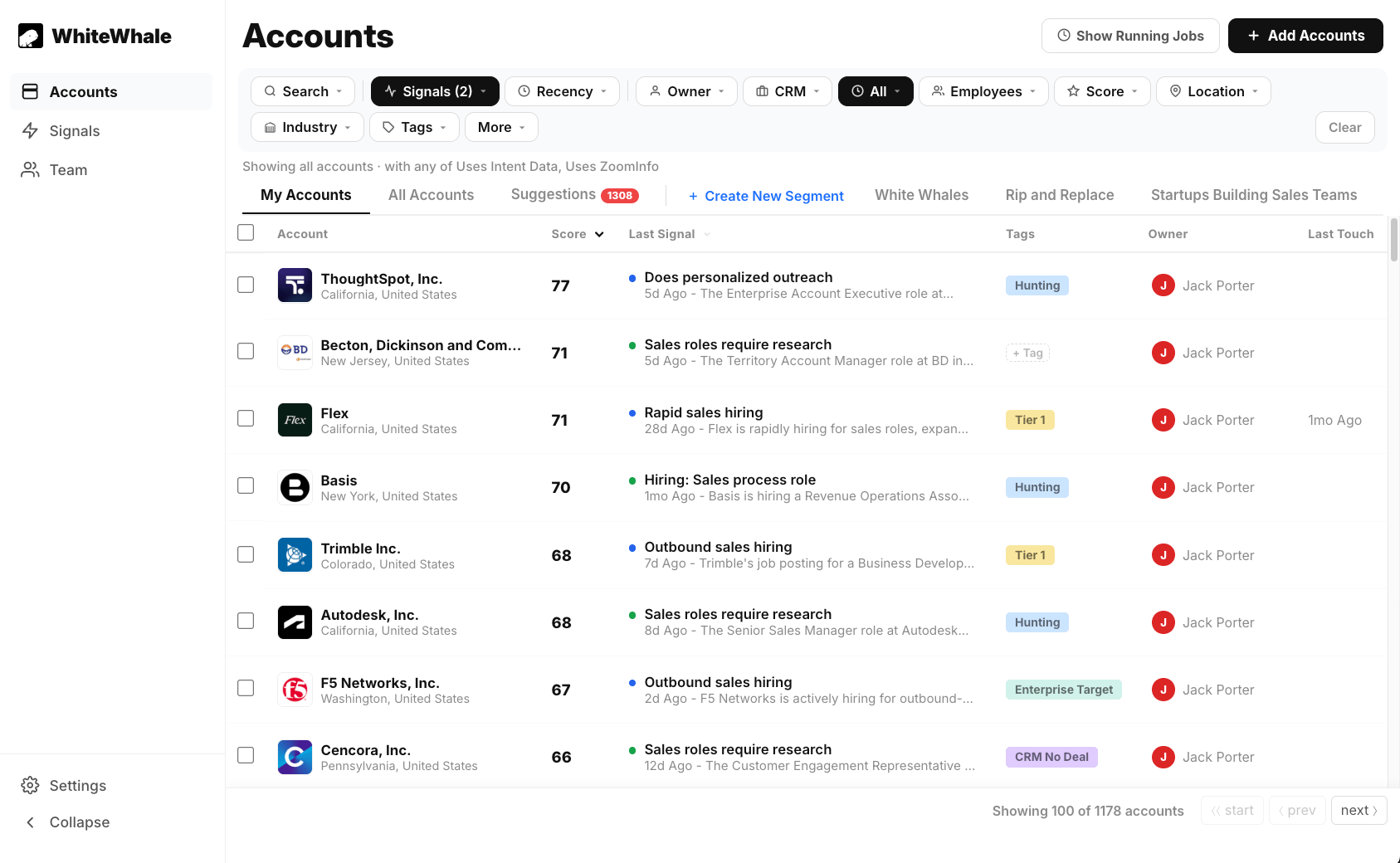 Your admin has already set up signals and assigned accounts to you. When you log in, go to **My Accounts** in the left nav — this is your book of business inside WhiteWhale.
Every account has a score from 0 to 100. Higher scores mean more recent, higher-ranked signals have fired. A score anywhere from 15 to 50 is a solid account worth working. Scores above 50 are strong. You'll rarely see anything above 70.
Understand what the score means and what a good score looks like for your book.
***
## Step 2: Find your freshest signal activity
Your admin has already set up signals and assigned accounts to you. When you log in, go to **My Accounts** in the left nav — this is your book of business inside WhiteWhale.
Every account has a score from 0 to 100. Higher scores mean more recent, higher-ranked signals have fired. A score anywhere from 15 to 50 is a solid account worth working. Scores above 50 are strong. You'll rarely see anything above 70.
Understand what the score means and what a good score looks like for your book.
***
## Step 2: Find your freshest signal activity
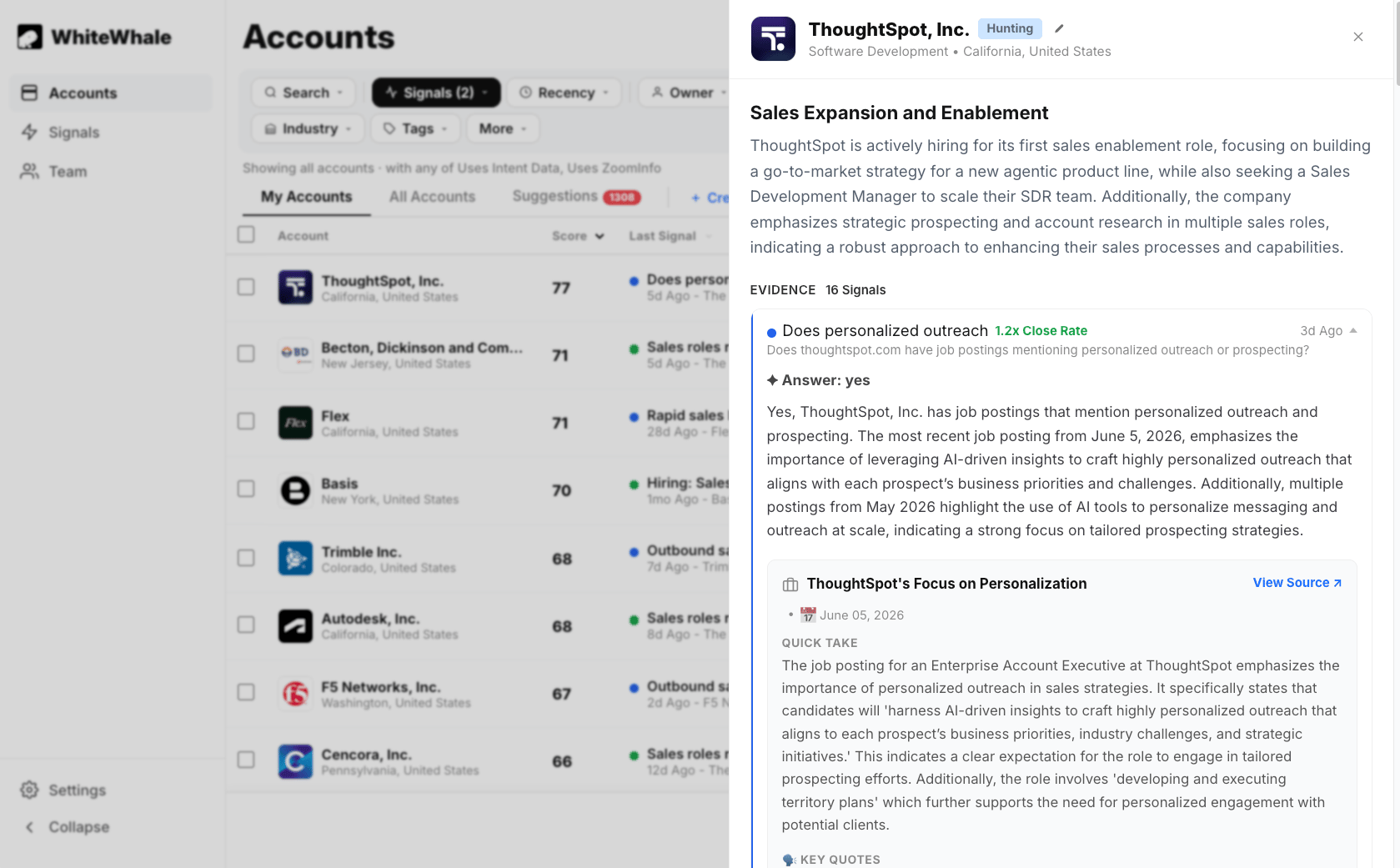 Don't start with your account list from top to bottom. Start with what's new.
Go to the **Accounts** page and click the **Last Signal** column to sort by most recent activity. Accounts with signal activity from the last 1–3 days are your highest priority — something just happened and you have a narrow window to act on it.
You can also filter by a specific signal to find accounts where a particular trigger fired recently. For example: all accounts with a *New CRO Hired* signal in the last 30 days.
Sort and filter your accounts by signal date to find the best timing.
***
## Step 3: Read the Why Now before you reach out
Don't start with your account list from top to bottom. Start with what's new.
Go to the **Accounts** page and click the **Last Signal** column to sort by most recent activity. Accounts with signal activity from the last 1–3 days are your highest priority — something just happened and you have a narrow window to act on it.
You can also filter by a specific signal to find accounts where a particular trigger fired recently. For example: all accounts with a *New CRO Hired* signal in the last 30 days.
Sort and filter your accounts by signal date to find the best timing.
***
## Step 3: Read the Why Now before you reach out
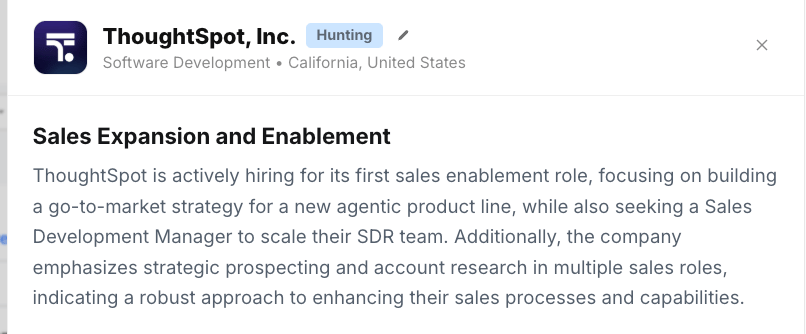 Click into any account and read the **Why Now summary** first. It connects the dots between everything WhiteWhale found on the account and tells you in 2–3 sentences what's changing, why it matters, and why now is the right time to reach out.
This is the most important thing WhiteWhale gives you. Use it to decide whether an account is worth your time — and if it is, use it as the foundation of your outreach.
**Ask yourself:** How does this Why Now connect to what I sell? What problem does it imply they're facing? How have I solved that before?
How to read the Why Now and use it to build your outreach angle.
***
## Step 4: Use Claude to build your pitch (Optional)
Click into any account and read the **Why Now summary** first. It connects the dots between everything WhiteWhale found on the account and tells you in 2–3 sentences what's changing, why it matters, and why now is the right time to reach out.
This is the most important thing WhiteWhale gives you. Use it to decide whether an account is worth your time — and if it is, use it as the foundation of your outreach.
**Ask yourself:** How does this Why Now connect to what I sell? What problem does it imply they're facing? How have I solved that before?
How to read the Why Now and use it to build your outreach angle.
***
## Step 4: Use Claude to build your pitch (Optional)
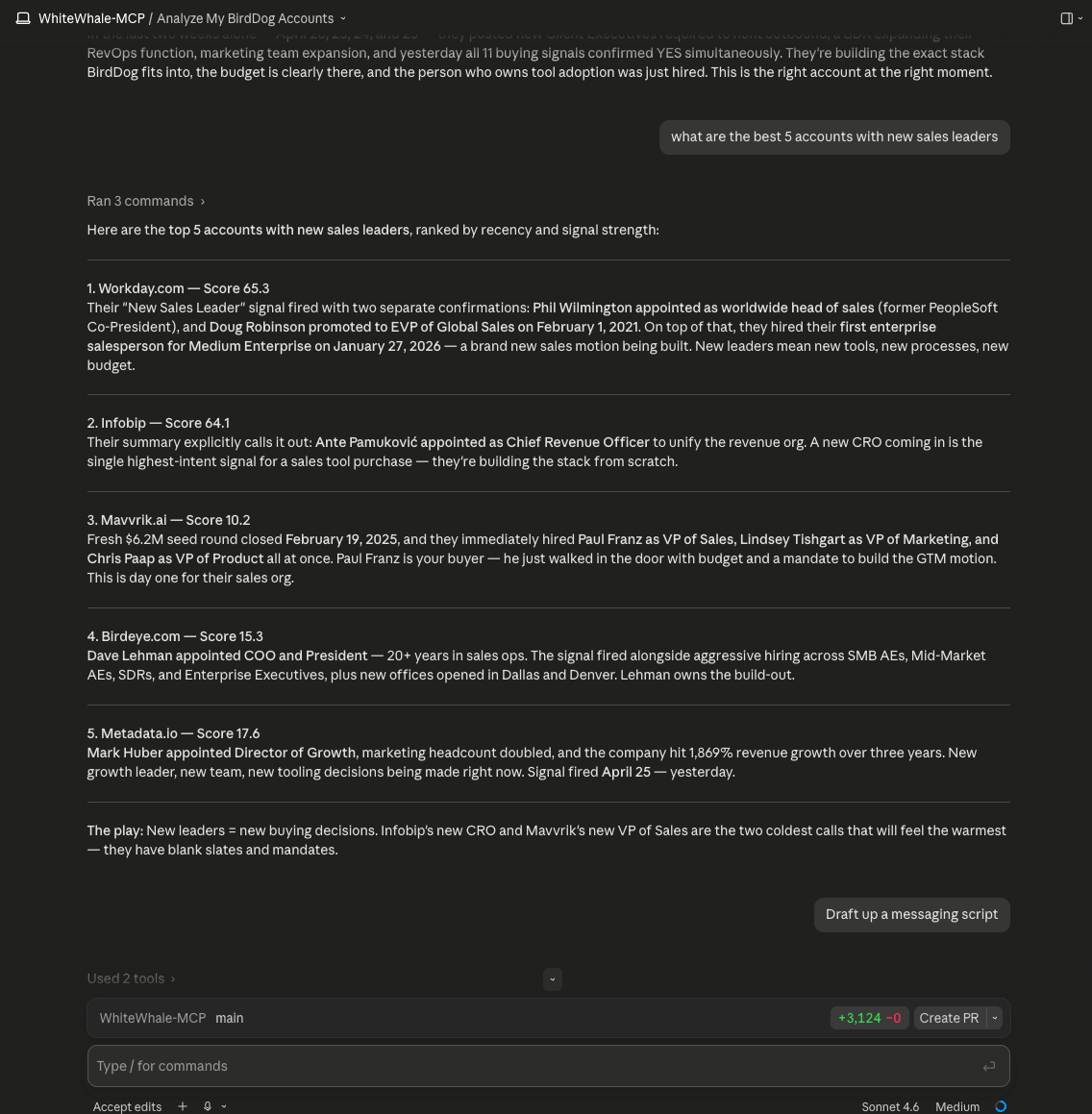 Once you have the Why Now, don't start from a blank page. Copy the summary and paste it into Claude with a simple prompt:
> *"Here's what's happening at this account: \[paste Why Now]. We sell \[product] that helps companies \[outcome]. Help me write a 2–3 sentence opener that connects their situation to our value."*
Claude will turn your signal data into a specific, personalized message in seconds. You can also ask Claude to help you understand the account better, identify the right contact to reach out to, or draft a follow-up sequence.
If your team has the **Claude MCP** set up, you can ask Claude directly about your WhiteWhale accounts without ever leaving the conversation:
* *"Which of my accounts should I prioritize today?"*
* *"What's happening at \[company]?"*
* *"Show me all my accounts with new CRO signals"*
Connect Claude to your WhiteWhale data for hands-free research.
Get the full signal story before you write a word.
***
## Step 5: Send the right message
We don't tell you how to do outreach, and we can't even promise meetings because so much goes into booking one. However, if you are looking for a place to get started after over 700 sellers have used WhiteWhale, the outreach that works from WhiteWhale follows a simple format every time:
1. **I noticed** — reference the specific signal you saw
2. **I bet** — name the problem that signal implies
3. **Here's how we help** — connect it to your product
4. **Lead magnet** — give them a reason to respond
**Example:**
> *Jeff — I wouldn't reach out if I hadn't done my homework. Saw you were hiring for 5 inbound SDRs taking demos. I'd bet you're thinking about how to ramp those reps fast so they can start generating pipeline. Usually the problem is teaching them the nuance of the pitch. If that's something you're thinking about, I have a 1-pager I built specifically for your company — want me to send it over?*
The channel matters less than the message. The best teams use a mix of calls, emails, and LinkedIn notes. What makes them work is leading with the signal — showing the prospect you did your homework before you said a word.
Real examples and the full framework for signal-based outreach.
***
## Step 6: Set up your notifications
Make sure WhiteWhale can reach you when something happens on your accounts.
**Slack or Teams:** Ask your admin to confirm you're connected. Then go to **Settings** → **User Notifications** and turn on at minimum:
* **Daily Signals** — new signal activity on your accounts
* **Assigned Accounts** — when a new account is assigned to you
**Google Calendar:** Connect your calendar and WhiteWhale will send you a research brief 24 hours before any meeting with a tracked account — so you always walk in prepared.
Get signal alerts in Slack.
Automatic research before every meeting with a tracked account.
***
## The data doesn't look right?
WhiteWhale is fully customizable — the signals, filters, and Account Suggestions settings your admin chose are a starting point, not permanent. If you're seeing:
* **Signals firing from the wrong geography** — the signal needs a location constraint added
* **Signals that are too broad or not relevant** — the signal needs more context or a tighter description
* **Accounts that don't fit your ICP** — the Account Suggestions filters need adjusting
* **Scores that seem off** — it may be a signal priority issue
You can't break anything by flagging this. Send your admin the specific example and point them to the relevant docs. The system improves the more it's tuned.
Share with your admin when signals are noisy or off-target.
Share with your admin when suggestions aren't the right fit.
***
## What good looks like
Before WhiteWhale, you're pulling accounts based on firmographics alone — industry, size, geography. No idea if the timing is right.
With WhiteWhale, every account you reach out to has a reason. Something changed. Something happened. You're not guessing — you're acting on a signal that tells you this account has a problem right now that you can solve.
The reps who get the most out of WhiteWhale check their new signals daily, read the Why Now before they reach out, and lead every message with the specific thing they noticed. That's it. Same accounts, same messaging — just better timing and better context.
See what the best teams are doing with WhiteWhale data.
Once you have the Why Now, don't start from a blank page. Copy the summary and paste it into Claude with a simple prompt:
> *"Here's what's happening at this account: \[paste Why Now]. We sell \[product] that helps companies \[outcome]. Help me write a 2–3 sentence opener that connects their situation to our value."*
Claude will turn your signal data into a specific, personalized message in seconds. You can also ask Claude to help you understand the account better, identify the right contact to reach out to, or draft a follow-up sequence.
If your team has the **Claude MCP** set up, you can ask Claude directly about your WhiteWhale accounts without ever leaving the conversation:
* *"Which of my accounts should I prioritize today?"*
* *"What's happening at \[company]?"*
* *"Show me all my accounts with new CRO signals"*
Connect Claude to your WhiteWhale data for hands-free research.
Get the full signal story before you write a word.
***
## Step 5: Send the right message
We don't tell you how to do outreach, and we can't even promise meetings because so much goes into booking one. However, if you are looking for a place to get started after over 700 sellers have used WhiteWhale, the outreach that works from WhiteWhale follows a simple format every time:
1. **I noticed** — reference the specific signal you saw
2. **I bet** — name the problem that signal implies
3. **Here's how we help** — connect it to your product
4. **Lead magnet** — give them a reason to respond
**Example:**
> *Jeff — I wouldn't reach out if I hadn't done my homework. Saw you were hiring for 5 inbound SDRs taking demos. I'd bet you're thinking about how to ramp those reps fast so they can start generating pipeline. Usually the problem is teaching them the nuance of the pitch. If that's something you're thinking about, I have a 1-pager I built specifically for your company — want me to send it over?*
The channel matters less than the message. The best teams use a mix of calls, emails, and LinkedIn notes. What makes them work is leading with the signal — showing the prospect you did your homework before you said a word.
Real examples and the full framework for signal-based outreach.
***
## Step 6: Set up your notifications
Make sure WhiteWhale can reach you when something happens on your accounts.
**Slack or Teams:** Ask your admin to confirm you're connected. Then go to **Settings** → **User Notifications** and turn on at minimum:
* **Daily Signals** — new signal activity on your accounts
* **Assigned Accounts** — when a new account is assigned to you
**Google Calendar:** Connect your calendar and WhiteWhale will send you a research brief 24 hours before any meeting with a tracked account — so you always walk in prepared.
Get signal alerts in Slack.
Automatic research before every meeting with a tracked account.
***
## The data doesn't look right?
WhiteWhale is fully customizable — the signals, filters, and Account Suggestions settings your admin chose are a starting point, not permanent. If you're seeing:
* **Signals firing from the wrong geography** — the signal needs a location constraint added
* **Signals that are too broad or not relevant** — the signal needs more context or a tighter description
* **Accounts that don't fit your ICP** — the Account Suggestions filters need adjusting
* **Scores that seem off** — it may be a signal priority issue
You can't break anything by flagging this. Send your admin the specific example and point them to the relevant docs. The system improves the more it's tuned.
Share with your admin when signals are noisy or off-target.
Share with your admin when suggestions aren't the right fit.
***
## What good looks like
Before WhiteWhale, you're pulling accounts based on firmographics alone — industry, size, geography. No idea if the timing is right.
With WhiteWhale, every account you reach out to has a reason. Something changed. Something happened. You're not guessing — you're acting on a signal that tells you this account has a problem right now that you can solve.
The reps who get the most out of WhiteWhale check their new signals daily, read the Why Now before they reach out, and lead every message with the specific thing they noticed. That's it. Same accounts, same messaging — just better timing and better context.
See what the best teams are doing with WhiteWhale data.